

Windows Fundamentals Training
Learn practical Windows computer skills from the ground up. Understand the desktop, Start menu, taskbar, applications, files and folders, File Explorer, storage, system settings, internet, Wi-Fi, printers, security, updates, Task Manager and everyday troubleshooting.
Build Strong Computer Fundamentals With Windows
This program is designed for learners who want confidence using a computer for education, office work, technical software, internet use and everyday digital tasks.
Learn the Operating System You Use Every Day
Training begins with computer hardware, mouse and keyboard operation, desktop navigation and application handling.
It then progresses into file management, software, system settings, storage, networking, security, backup and troubleshooting.
Use → Organize → Connect → Protect → Troubleshoot
The objective is to help a beginner become comfortable operating a Windows computer independently and safely.
Windows Skills Covered in the Program
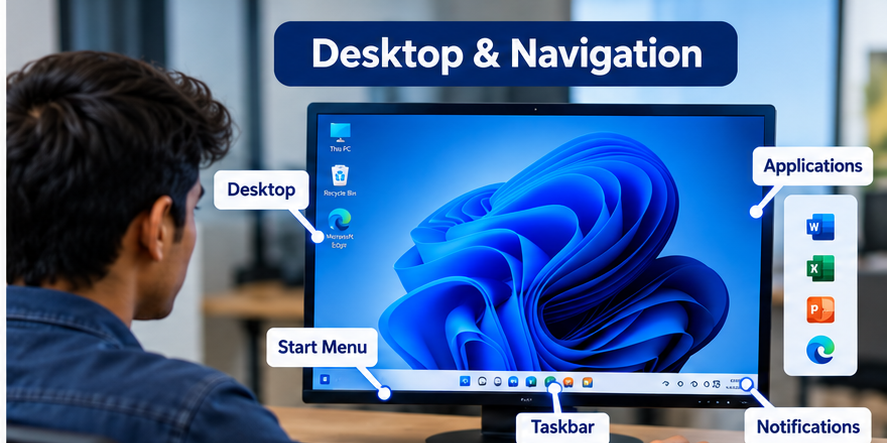
Desktop Navigation
Desktop, Start menu, taskbar, windows and applications.
Files & Folders
Create, rename, copy, move, search and organize information.
Drives & USB
Understand drives, storage space and removable devices.
Applications
Open, install, uninstall and manage computer software.
Windows Settings
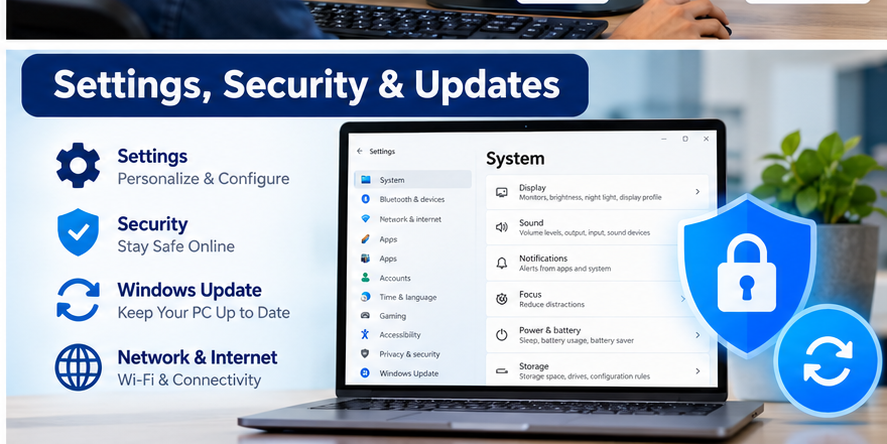
Display, sound, devices, accounts and personalization.
Wi-Fi & Networking
Connect to networks and understand basic connectivity.
Security
Passwords, updates, safe downloads and malware awareness.
Troubleshooting
Understand common Windows and application problems.
Files, Folders, File Explorer & Storage
File management is one of the most important computer skills. Learn how Windows stores information and how to organize it properly.
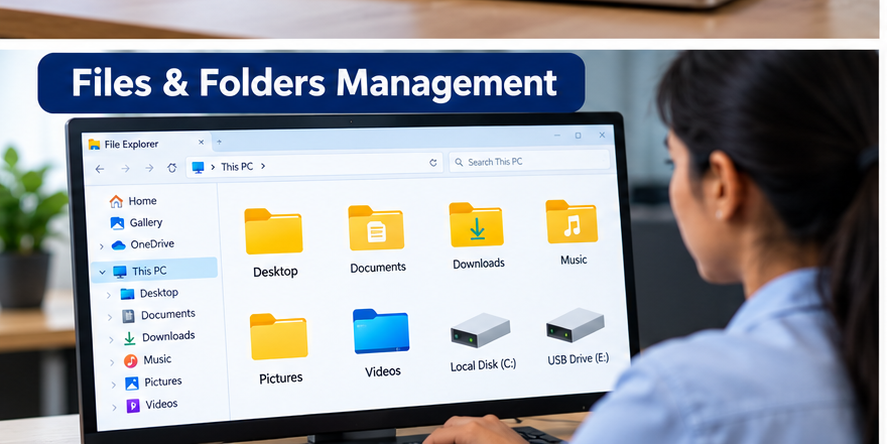
File Explorer
- Create folders
- Create subfolders
- Rename files
- Copy files
- Move files
- Delete files
- Restore from Recycle Bin
- Search files
- Sort files
- View file properties
Storage
- Local Disk
- Drive letters
- USB storage
- Documents folder
- Downloads folder
- Desktop folder
- File extensions
- Storage capacity
- Available disk space
- Safe USB removal
16-Module Windows Fundamentals Training Curriculum
Computer Fundamentals
Computer, CPU, memory, storage, monitor, keyboard, mouse and peripheral fundamentals.
Introduction to Windows
Operating system basics, sign-in, desktop, Start menu and taskbar.
Mouse, Keyboard & Shortcuts
Selection, clicking, drag-and-drop, typing and essential keyboard shortcuts.
Windows & Applications
Open, close, minimize, maximize, resize and switch applications.
Files, Folders & File Explorer
Create, copy, move, rename, delete and organize files and folders.
File Types & Extensions
Documents, images, PDFs, applications, archives and file associations.
Search & Organization
Search, sort, filter and create logical data structures.
Drives, Storage & USB
Internal storage, USB devices, capacity and storage management.
Windows Settings
Display, sound, devices, language, time and personalization.
Software Installation
Install, remove and understand basic software requirements.
Printers & Devices
Printer selection, scanners, peripherals and device configuration basics.
Internet, Wi-Fi & Networking
Wireless networking, LAN concepts, browser use and basic connectivity.
User Accounts & Security
Passwords, PINs, permissions, safe browsing and account security.
Windows Update, Backup & Recovery
Updates, backup concepts, restore options and data protection.
Task Manager & System Tools
Applications, processes, startup items, performance and system information.
Troubleshooting & Assessment
Identify and resolve common Windows, software, storage and connectivity problems.
Learn Windows by Actually Using It
Desktop Setup
Navigate and personalize the Windows desktop.
Folder Structure
Create an organized folder system.
Manage Files
Copy, move, rename and search files.
USB Storage
Transfer data to removable storage.
Install Software
Understand a normal software installation.
Wi-Fi Setup
Connect Windows to a wireless network.
Task Manager
View and manage running applications.
Troubleshooting
Diagnose a basic computer problem.
Windows Settings, Security & Updates
Use Windows Confidently for Study and Work
Sign In
Access your account safely.
Find Data
Navigate folders and files.
Use Apps
Open and manage software.
Connect
Use networks and devices.
Protect
Update, secure and back up data.
Essential Windows Keyboard Shortcuts
Introduction to Windows System Tools
Command Prompt Basics
- Opening Command Prompt
- Understanding current folder
- Changing directory
- Listing files
- Creating folders
- Basic IP information
- Ping concept
- Safe command-line use
Windows Utilities
- Task Manager
- System Information
- Device Manager awareness
- Storage settings
- Startup applications
- Windows Update
- Network settings
- Troubleshooting tools
Common Windows Problems
Computer Running Slowly
Check running applications, startup programs, available storage and restart requirements.
Application Not Responding
Use Task Manager and understand safe application restart procedures.
Wi-Fi Not Connecting
Check Wi-Fi status, network selection, password and connectivity settings.
Printer Not Printing
Check connection, printer selection, print queue and device status.
Storage Is Full
Check available disk space and locate unnecessary files.
Cannot Find a File
Use Windows search and review common folders and Recycle Bin.
USB Device Not Visible
Check connection, File Explorer and device recognition.
Software Installation Problem
Check compatibility, permissions, available storage and installer requirements.
Who Should Learn Windows Fundamentals?
Suitable Participants
- School students
- College students
- ITI students
- Diploma students
- Engineering students
- Office beginners
- Administrative staff
- Technicians
- Job seekers
- Working professionals
- Business owners
- Complete computer beginners
Useful For
- Office computer operation
- Online education
- Technical software preparation
- Document management
- Online applications
- Digital communication
- Printer and device usage
- Basic IT support
- Industrial software users
- Further IT training
Skills You Should Develop
Windows Fundamentals Training FAQs
What is Windows Fundamentals Training?
It teaches practical computer operation using Microsoft Windows, including desktop navigation, files, folders, applications, settings, internet, security and troubleshooting.
Is this course suitable for complete beginners?
Yes. Training begins with basic computer, mouse, keyboard and Windows operation.
Which Windows version is covered?
The program is designed around modern Windows 11 fundamentals, while many core skills also apply to earlier Windows versions.
Are files and folders covered?
Yes. File Explorer, folders, file types, copy, move, rename, delete, restore and search are included.
Does the course include Wi-Fi and internet?
Yes. Wi-Fi, browser use, LAN concepts and basic connectivity troubleshooting are included.
Is Windows security included?
Yes. Passwords, safe browsing, updates, downloads, malware awareness and backup concepts are covered.
Is Task Manager covered?
Yes. Learners are introduced to running applications, processes, startup programs and basic performance information.
Is Command Prompt included?
Yes. A beginner-level introduction to Command Prompt and basic system commands is included.
Is this an official Microsoft certification?
No. This is an independent Windows fundamentals training program offered by NCVT and should not be represented as Microsoft certification.
Build Strong Computer Skills From the Fundamentals
Learn Windows, files and folders, software, internet, settings, security, storage, system tools and troubleshooting through practical computer training.
Enquire for Windows Fundamentals Training →